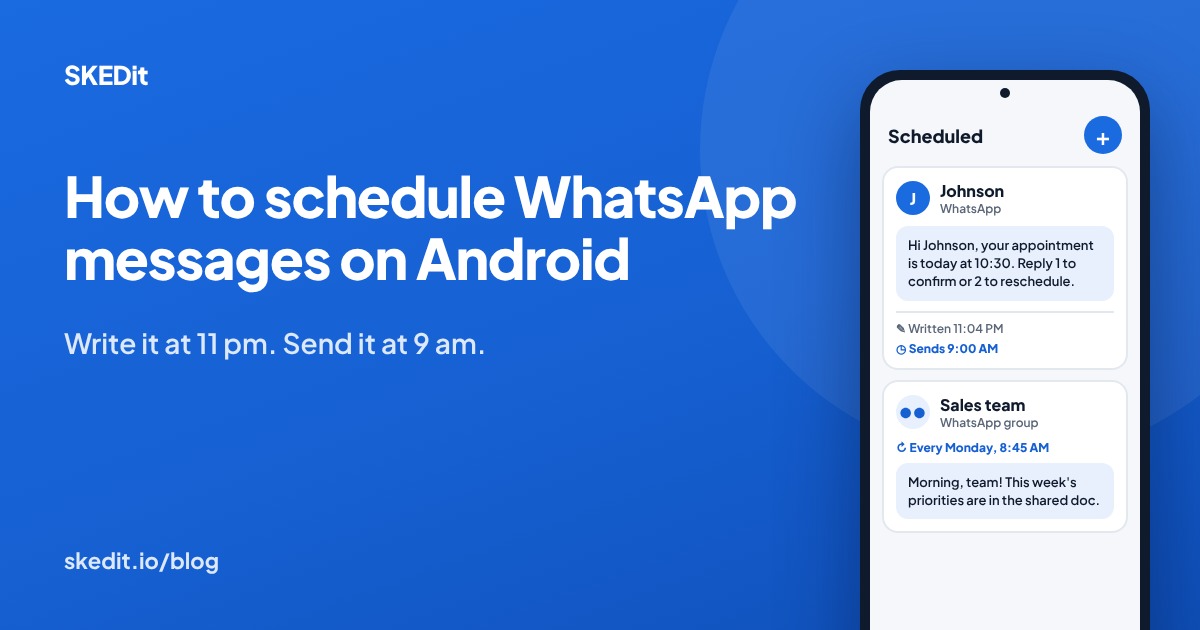
You remember the message at 11 pm, but it should land at 9 am. Or you want a birthday wish to arrive at midnight without staying up for it. WhatsApp is only now testing a send-later option on Android, and most people do not have it yet, so the usual workaround is still a phone reminder and a bit of luck.
This guide explains what WhatsApp can schedule natively today and how to schedule WhatsApp messages on Android with SKEDit, step by step. It’s written by the SKEDit team, so it also covers the phone settings that decide whether a scheduled message actually goes out.
Quick answer: WhatsApp is testing its own scheduled messages on Android: in October 2026 the feature reached some beta testers, for one-off messages up to two weeks ahead. Most people do not have it yet, and it does not repeat messages or post a Status. Today, install a scheduler such as SKEDit and choose WhatsApp. Pick contacts or groups, write the message, set the date and time, and keep your phone on and online. Business accounts can also schedule business broadcasts in the WhatsApp Business app, where the feature is available.
Can you schedule WhatsApp messages natively on Android?
For most people, not yet. Here’s what each version of WhatsApp can do as of 13 October 2026.
WhatsApp (the personal app). A built-in scheduler is on its way. WABetaInfo reported on 12 October 2026 that WhatsApp beta for Android 2.26.40.7 is rolling out scheduled messages to some beta testers, with more people to follow over the coming weeks. It covers text, links and one photo or video per message, in individual and group chats, from 10 minutes to two weeks ahead. It was not in the regular app when this guide was last updated.
WhatsApp Business app. Two tools come close. Away messages can run on a schedule, such as outside business hours, but they only reply to people who message you first. Business broadcasts let you message many customers now or schedule the send for later. WhatsApp charges for each message delivered, and the feature isn’t available in every country.
Android itself. Android has no system setting that sends a WhatsApp message at a chosen time.
That leaves a gap for anything personal or repeating: a midnight birthday wish, a weekly team update, a reminder to one client. The beta covers one-off messages only. The reports say nothing about repeating messages, Status updates, sending to many contacts at once or auto-replies. For those, you need a scheduler app.
How Android scheduler apps send WhatsApp messages for you
Scheduler apps like SKEDit don’t send your messages from a server. They use Android’s accessibility service, which lets an app open WhatsApp on your phone and tap Send for you at the time you chose.
Three things follow from that:
- Your phone has to be on and online at the scheduled time. If it’s switched off or has no connection, the message can’t go out.
- The message comes from your own WhatsApp. Recipients see a normal message from you, in your usual chat.
- Phone settings matter. Battery savers, screen locks and switched-off permissions can stop the app at the moment it needs to act.
Accessibility access is powerful, so only grant it to apps you trust. SKEDit uses it to automate sending, and says it never stores or accesses your WhatsApp credentials.
How to schedule a WhatsApp message on Android with SKEDit
The steps below work for both WhatsApp and WhatsApp Business. The first setup takes a few minutes; after that, scheduling a message takes seconds.
- Install SKEDit and sign in. Download it free from Google Play and create an account.
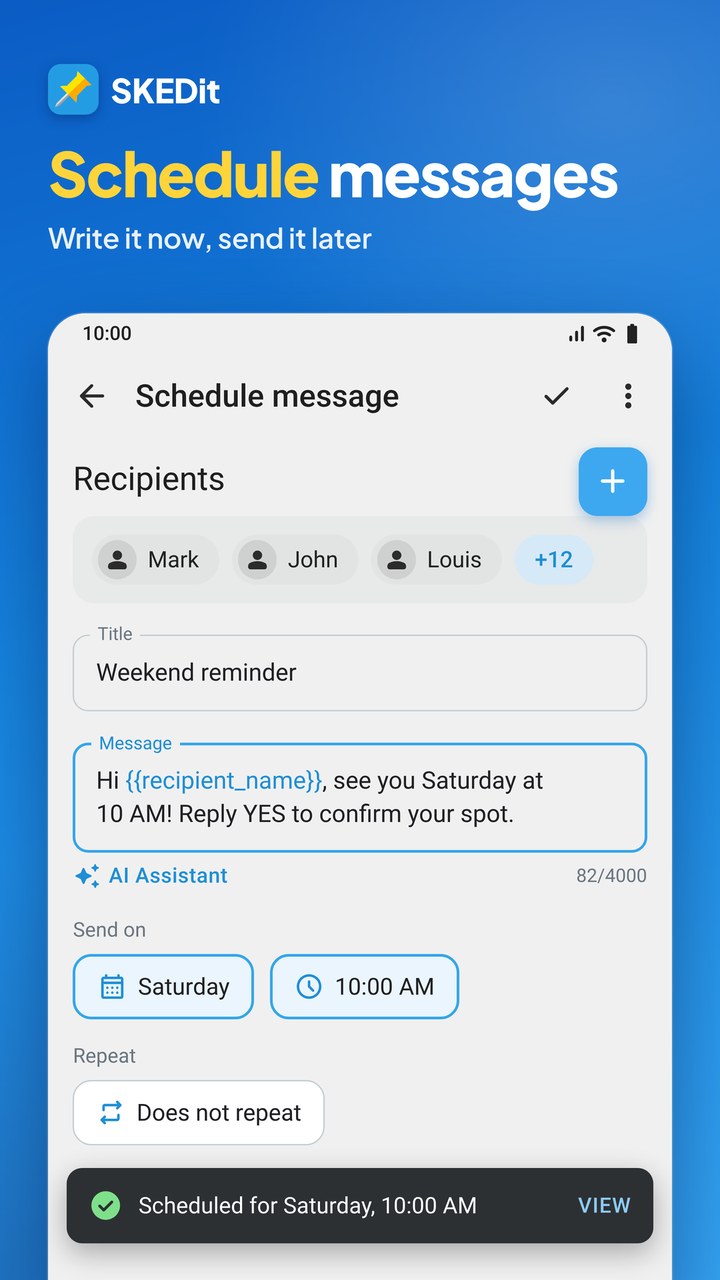
- Tap the + button and choose WhatsApp or WhatsApp Business. This opens the scheduling screen.
- Clear the red warning triangle. Tap the triangle at the top of the scheduling screen and enable each required setting, such as accessibility. Messages scheduled before this is done can fail.
- Choose who receives it. Pick contacts, groups or broadcast lists. SKEDit can also schedule Status updates, polls, and posts to communities and channels.
- Write your message. Add attachments if you need them, or let SKEDit’s AI draft or polish the text.
- Set the date, time and repeat. Choose a single time, or repeat the message daily, weekly or monthly.
- Decide how it sends. Leave Ask me before sending off for fully automatic sending. Turn it on if you’d rather get a notification at send time and confirm with one tap.
- Save the schedule. It joins your list of scheduled messages, where you can edit or cancel it before it goes out.
Try it free: SKEDit’s Free plan holds up to 5 scheduled messages at a time. Pro raises that to 30, and Max has no limit (compare plans). Download SKEDit on Google Play.
Scheduling for groups, communities and channels
Group scheduling works the same way as for a single contact: choose the group as the recipient. It suits team updates, class reminders and family plans, where everyone should get the message at the same moment.
SKEDit’s help centre recommends a few naming habits that keep group sends reliable:
- Give each contact and group a unique name, without emojis.
- Avoid number prefixes such as “001 John” and names longer than 25 characters.
- Rename broadcast lists before you schedule to them.
Repeating messages
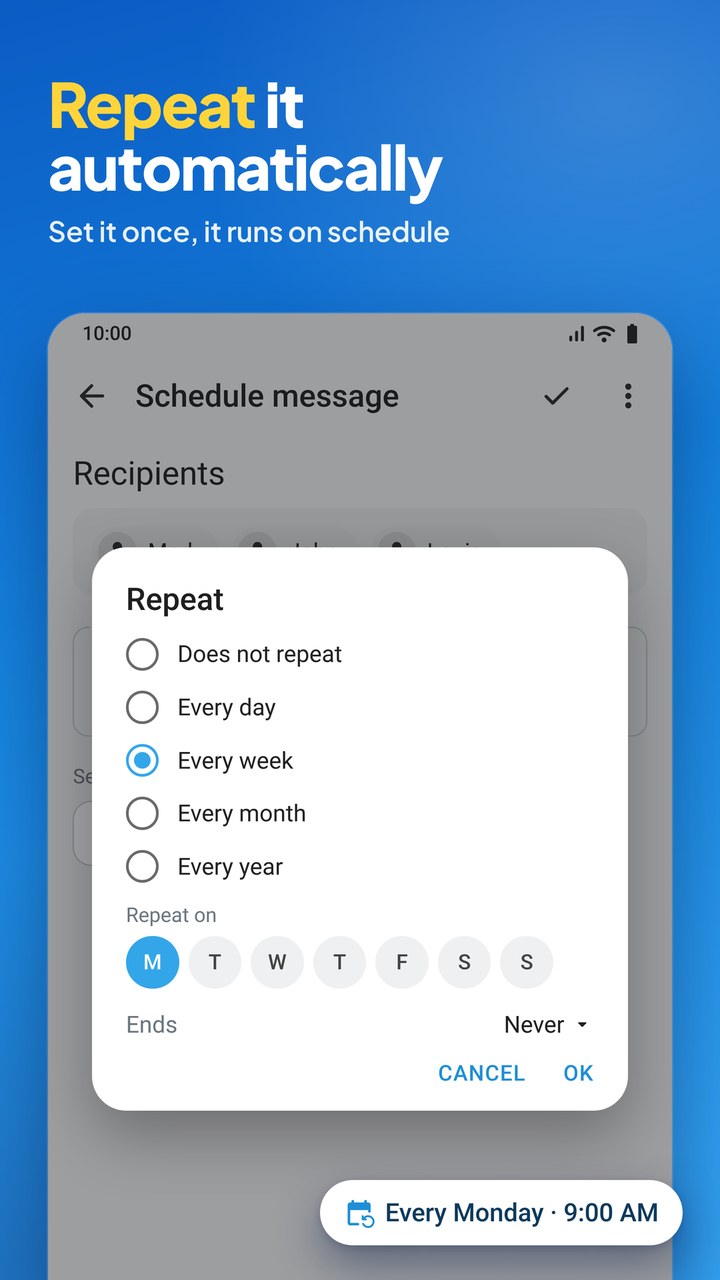
For anything that happens on a cycle, set a repeat instead of creating a new schedule each time. Typical examples are a Monday stand-up note, a monthly rent reminder or a daily check-in with an elderly relative. The repeat keeps running until you edit or delete the schedule.
Make sure your scheduled message actually sends
An on-device scheduler depends on your phone cooperating at the moment of sending. Run through this list once after installing SKEDit, and again after a major Android update.
- Phone on, internet on. SKEDit sends from your device, not the cloud, so a phone that’s off, restarting or offline can’t send.
- Battery optimisation off for SKEDit. Many phone makers stop background apps to save power. Set SKEDit to “unrestricted” or “no restrictions” in your battery settings. Don’t kill my app shows where that setting lives on each brand.
- Auto-start allowed on Xiaomi, Redmi and Poco. These phones may not restart background services after a reboot unless auto-start is enabled. SKEDit’s setup guide by brand lists the settings for each phone.
- Accessibility still switched on. Some phones turn accessibility services off on their own. If messages stop sending, check this first.
- A screen lock SKEDit can work with. To send while the phone is locked, pick one option from Managing Screen-Lock:
- Add your PIN or password in SKEDit’s settings to turn on Auto-Unlock. You can also enable Auto-Lock Device so the phone locks again right after sending.
- Turn on Android’s Smart Lock, which stays active for 4 hours at a time.
- Remove the screen lock by setting it to Swipe or None.
- Turn on Ask me before sending, then unlock your phone and tap Send on the notification.
- Pattern locks aren’t supported for automatic unlocking.
- Space messages out. Leave 3-5 minutes between messages to the same person, and longer when a message has many recipients. Avoid scheduling two messages for the same minute.
- Stay within the limits. Your plan sets how many recipients and attachments one message can carry (Free: 1 and 1; Pro: up to 30 each). On any plan, keep each scheduled message to 250 recipients and 10 attachments or fewer so it sends reliably.
Scheduled message examples you can copy
Replace the details in square brackets, then pick a send time that suits the reader, not you.
Birthday at midnight (send at 00:00 on the day)
Happy birthday, [Name]! I wanted mine to be the first message you see today. Dinner’s on me this week.
Appointment reminder (send the evening before)
Hi [Name], a reminder that your appointment is tomorrow, [date], at [time]. Reply 1 to confirm or 2 to reschedule.
Payment reminder (send at 9:00 on the due date)
Hi [Name], invoice [number] for [amount] is due today. You can pay by [payment method]. Thanks for your business!
Weekly team update (repeat every Monday at 8:45)
Morning, team! This week’s priorities are in [link]. Stand-up is at 9:30 as usual.
Follow-up in the reader’s time zone (send at 9:00 their time)
Hi [Name], following up on the proposal I sent on [day]. Happy to walk you through it on a quick call this week.
Stay within WhatsApp’s rules
Scheduling a message to a friend, your team or a client who expects it is simply sending a message later. Trouble starts when automation is used for volume. WhatsApp’s Messaging Guidelines prohibit using bulk messaging, auto-messaging or automation to harm users, and WhatsApp can restrict accounts that people report.
- Schedule to people who know you. Friends, colleagues and customers who expect to hear from you are the right audience for an on-device scheduler.
- Don’t use the Android app for cold outreach. SKEDit’s own help centre warns that messaging unsaved numbers, or people who haven’t agreed to hear from you, can get your account restricted.
- Use the official platform for business campaigns. WhatsApp’s Business Messaging Policy requires opt-in before a business contacts people. For campaigns to opted-in customers, including numbers you haven’t saved, use the WhatsApp Business Platform. SKEDit Business is built on it.
Other ways to schedule WhatsApp messages
A scheduler app isn’t the only route, and the right choice depends on what you send and from which device.
- SKEDit on Android: one-off and repeating messages to contacts, groups, communities, channels and Status. Your phone needs to be on and online at send time.
- WhatsApp Business app: scheduled away messages, which only reply to incoming chats, plus scheduled business broadcasts where available, charged per delivered message.
- WhatsApp’s native scheduler: one-off messages in chats and groups, up to two weeks ahead. In beta for some Android testers as of October 2026.
- WhatsApp Web extensions: schedule from a computer, but the browser generally needs to be open with WhatsApp Web connected at send time.
- SKEDit Business on the WhatsApp Business Platform: scheduling from the cloud for businesses, using WhatsApp-approved message templates, so no phone has to stay on.
- iPhone: SKEDit is Android-only. iPhone users usually turn to Apple’s Shortcuts app, which works differently from the steps in this guide.
Start scheduling today
WhatsApp’s own scheduler will cover simple one-off messages once it reaches your phone. For repeating messages, a Status, many recipients or anything further than two weeks ahead, reliable scheduling on Android comes down to three things. You need the right app, phone settings that let it work, and messages your recipients expect. Set SKEDit up once, clear the warning triangle, check your battery and screen-lock settings, and your messages have the best chance of going out on time.
Schedule your first WhatsApp message free. Download SKEDit on Google Play. The Free plan holds up to 5 scheduled messages at a time; Pro raises that to 30 and Max has no limit. Running campaigns for a business? See SKEDit Business.
Frequently asked questions
Can I schedule a WhatsApp message without an app?
For most people, not yet. WhatsApp’s own scheduler reached some Android beta testers in October 2026 and is rolling out gradually. It handles one-off messages up to two weeks ahead. The WhatsApp Business app can schedule away messages and, in some countries, business broadcasts.
Will the recipient know the message was scheduled?
No. SKEDit sends through WhatsApp on your phone, so the message arrives like any other message from you.
Does my phone need to be on?
Yes. SKEDit sends from your device, so the phone must be on and connected to the internet at the scheduled time.
What happens if my phone is locked?
SKEDit can still send if you add your PIN or password in its settings, use Smart Lock, or remove the screen lock. If you’d rather not, turn on Ask me before sending and confirm from the notification. Pattern locks aren’t supported for automatic unlocking.
Can I schedule messages to WhatsApp groups?
Yes. Choose the group as the recipient, the same way you would a contact. You can also schedule to broadcast lists, communities, channels and your Status.
Can I schedule recurring WhatsApp messages?
Yes. Set a daily, weekly or monthly repeat when you create the schedule.
Does it work with WhatsApp Business and dual WhatsApp?
Yes. Choose WhatsApp Business when you create the schedule. If your phone runs two WhatsApp accounts, pick the one SKEDit should use under Dual WhatsApp Settings.
How many messages can I schedule for free?
The Free plan holds up to 5 scheduled messages waiting to send at a time. Pro raises that to 30, and Max has no limit. Compare them on the plans page.
Can I schedule messages to numbers I haven’t saved?
It isn’t recommended on the Android app, because messaging unsaved numbers or people who haven’t agreed to hear from you can get your account restricted. For business messages to opted-in customers, use SKEDit Business on the official WhatsApp Business Platform.
Is SKEDit safe to use with WhatsApp?
SKEDit uses Android’s accessibility service to send messages and says it never stores or accesses your WhatsApp credentials. As with any app that has accessibility access, install it only from Google Play or Huawei AppGallery. Plans, limits and platforms are listed on the SKEDit facts page.