You have one message and fifty people who need it: a price list for your customers, a timetable change for parents, an invitation for the whole team. A group shows everyone’s number to everyone else. A broadcast list skips anyone who has not saved your number. Copying and pasting fifty times costs you the evening.
This guide shows how to send bulk messages on WhatsApp from an Android phone, so that each person gets a private message from you, with their own name in it if you like. It’s written by the SKEDit team, and it is frank about the limits.
Quick answer: WhatsApp itself offers groups and broadcast lists of up to 256 contacts, and a broadcast only reaches people who have saved your number. To message many saved contacts privately from your own number, use a scheduler such as SKEDit on Android: add the recipients, write one message, set a time, and SKEDit sends it to each person one by one. For customers whose numbers you have not saved, use the official WhatsApp Business Platform.
What bulk messaging means on WhatsApp, and how to stay within the rules
On WhatsApp, “bulk” covers two very different things. One is a message to people who know you and expect to hear from you: your customers, your students, your tenants. The other is the same text pushed at strangers.
WhatsApp’s Messaging Guidelines prohibit using bulk messaging, auto-messaging or automation to harm WhatsApp or its users, and they prohibit repeated unwanted contact. WhatsApp can restrict accounts that people report. One rule runs through this guide: send to people who have your number, who know why you are writing, and who would not be surprised by the message.
Four ways to send bulk messages on WhatsApp
- A WhatsApp group. Built in and free. Everyone sees everyone else’s number and every reply, so it suits a team or a family, not a customer list.
- A WhatsApp broadcast list. Also built in. Each person gets the message as a private chat. A list holds up to 256 contacts, and only people who have saved your number receive it. WhatsApp says people in some countries may also see a monthly broadcast limit.
- A scheduler on your phone, such as SKEDit. You choose the recipients, and at the time you set, the app sends the message to each of them one by one through your own WhatsApp. It can add each person’s name, attach files and repeat on a schedule. Your phone has to be on and online.
- The official WhatsApp Business Platform. Messages go out from Meta’s servers through an approved provider, to customers who opted in. It needs approved message templates, and Meta charges for the messages.
What about WhatsApp’s own scheduler? As of October 2026, WhatsApp is testing scheduled messages with some Android beta users, according to WABetaInfo. You schedule from inside a chat, so it covers one chat or one group at a time, up to two weeks ahead. If all you need is one message to one group, that will be enough once it reaches your phone. Nothing in the reports describes sending the same private message to a list of people.
How to send a bulk message on WhatsApp with SKEDit
The steps are the same for WhatsApp and WhatsApp Business. New to SKEDit? Our guide to scheduling WhatsApp messages on Android covers the one-time phone setup in more detail.
- Install SKEDit and sign in. Get it from Google Play and create an account. It runs on Android 8.0 or later.
- Tap the + button and choose WhatsApp or WhatsApp Business. This opens the scheduling screen.
- Clear the red warning triangle. Tap the triangle at the top of the scheduling screen and switch on each setting it lists, such as Accessibility. SKEDit sends by opening WhatsApp and tapping for you, and it can’t do that without these settings.
- Set the schedule type to Contacts / Groups.
- Add your recipients. Tap the + next to Recipients and choose how: pick chats in WhatsApp, pick from your Phonebook, use one of your SKEDit Lists, upload a CSV file (Max), or enter names manually. To select several chats at once in WhatsApp, long-press the first one until the blue SKEDit pin appears, tap the others, then tap the pin. Multiple contact selection is part of Pro and Max.
- Write the message. Add attachments if you need them.
- Set the date and time. On Pro and Max, add a repeat if the message goes out regularly, such as a weekly price list.
- Tap Schedule. At the set time, SKEDit opens WhatsApp and sends the message to each recipient in turn. Leave the phone alone until it has finished.
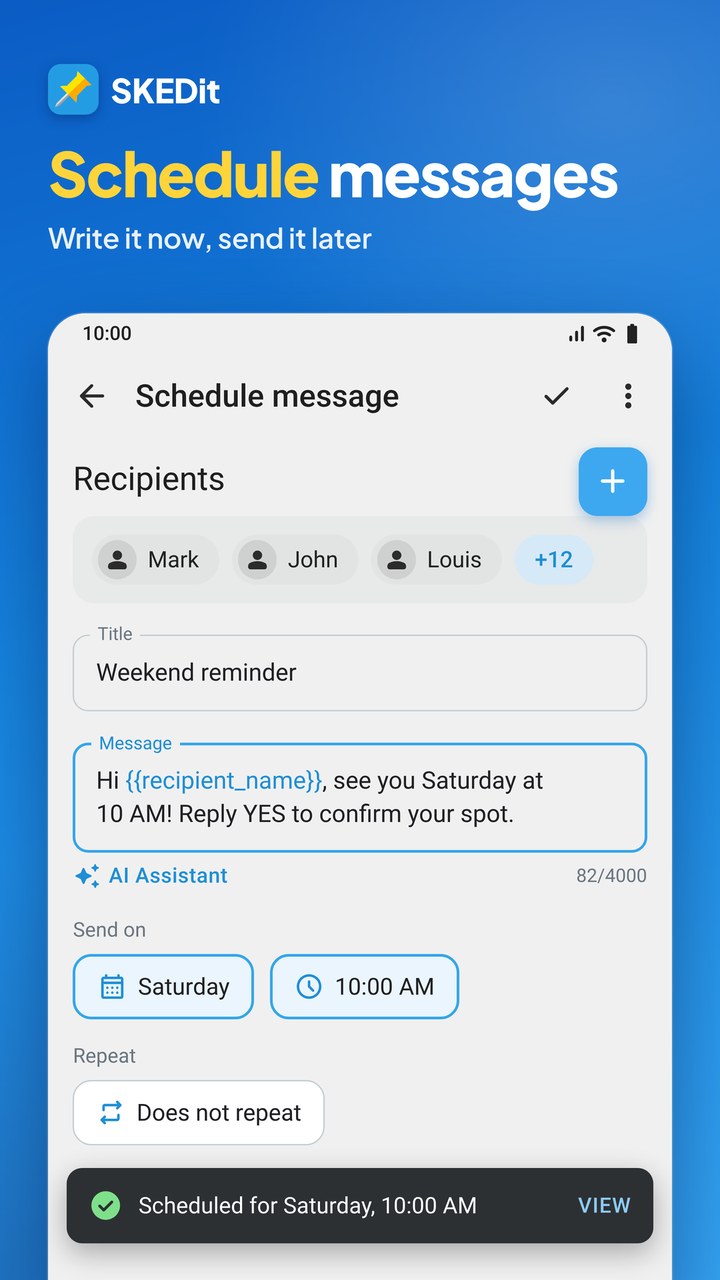
Add each person’s name automatically
A message that opens with the reader’s name reads like a personal note. In the message field, tap the { } icon and choose a placeholder such as @recipient_firstname. At send time, SKEDit replaces it with each recipient’s first name.
Hi @recipient_firstname, the new price list is attached. Orders placed before Friday ship next week.
Placeholders are part of Pro and Max, and the help centre has the full list of placeholders. Send a test to one contact first, so you can see how the names come out.
Save your recipients as a list
If you write to the same people often, save them once. Open the menu, tap SKEDit Broadcast Lists, choose WhatsApp or WhatsApp Business, tap + and add the contacts. These are SKEDit’s own lists, not WhatsApp broadcast lists. Next time you add recipients, choose SKEDit Lists and pick that list. On Pro, a list holds up to 30 recipients.
Import recipients from a file
On Max, you can import recipients from a CSV or TXT file. In a CSV, put one name per row in column A, written exactly as the contact is saved in WhatsApp, then choose Upload CSV when you add recipients. Names that don’t match exactly may not be found.
How many people can you message at once?
Two limits apply: your plan, and what a phone can do reliably in one go.
- Free: 1 recipient per message, and up to 5 scheduled messages waiting at a time.
- Pro: up to 30 recipients per message, and up to 30 scheduled messages waiting at a time.
- Max: no fixed limit on recipients or on waiting messages, plus CSV import.
On any plan, SKEDit’s help centre recommends keeping one scheduled message to 250 recipients and 10 attachments or fewer, for reliable sending. For a bigger audience, split it into several messages at different times. Current plans and prices are on the plans page.
Settings that keep a large send reliable
- Phone on, online and left alone. SKEDit sends from your phone, not from a server. If you leave WhatsApp or close the countdown while it is sending, the send stops.
- Battery optimisation off for SKEDit. Also turn on auto-start on brands that have it, such as Xiaomi, Redmi and POCO. The setup guide by brand shows where each setting lives.
- A screen lock SKEDit can open. Save your PIN or password in SKEDit, use Smart Lock, or turn on Ask me before sending. A pattern lock does not work.
- Clear recipient names. SKEDit finds each recipient by name. Every name must be unique, differ from the others within the first 30 characters, and contain text, not only emojis (naming rules).
- Time between messages. Don’t schedule two messages for the same minute. Leave 3 to 5 minutes between messages that have one recipient each, and more when each message has many recipients.
- A slower pace on older phones. If SKEDit reports that it could not find a contact, open its settings, set Sending speed to Slowest and set the number of recipients per batch to 1.
When to use the official WhatsApp Business Platform instead
An app on your phone is the wrong tool for some jobs. Choose the official platform when:
- you want to reach customers whose numbers you have not saved. SKEDit’s own help centre advises against doing this from the Android app, because WhatsApp may restrict or block the account;
- your audience is far larger than a few hundred people;
- no phone can stay switched on and online at send time.
SKEDit Business is our separate product for that. It runs on the web and sends through the official WhatsApp Business API. It needs message templates that WhatsApp approves, and recipients who agreed to hear from your business, as WhatsApp’s Business Messaging Policy requires. Meta charges its own fees for those messages. People who have not agreed to hear from you should not get bulk messages by any route.
Start with a small send
Bulk messaging on WhatsApp works when the people at the other end are glad to get the message. Start with a list of ten, add names with a placeholder, watch how the send behaves on your phone, and grow from there.
Send your first bulk message. Download SKEDit on Google Play. The Free plan sends to 1 recipient per message, so you can check that everything works on your phone. Pro sends to up to 30 recipients per message, and Max has no fixed limit and adds CSV import (compare plans).
Frequently asked questions
Can I send a bulk message on WhatsApp without creating a group?
Yes. A WhatsApp broadcast list, or a scheduler such as SKEDit, delivers the message to each person as a private chat. Recipients don’t see each other, and replies come only to you.
Will recipients know the message was sent in bulk?
No. SKEDit sends through WhatsApp on your phone, one chat at a time, so each person sees a normal message from you.
How many contacts can I message at once?
A WhatsApp broadcast list holds up to 256 contacts. In SKEDit, Free allows 1 recipient per message, Pro up to 30, and Max has no fixed limit. Plans and limits are on the SKEDit facts page.
Can WhatsApp restrict my number for bulk messages?
Yes, if the messages are unwanted or people report them. Message only people who know you and expect to hear from you, and don’t use the Android app for cold outreach.
Can I send bulk messages to numbers I have not saved?
It isn’t recommended from the Android app, because WhatsApp may restrict the account. For opted-in customers whose numbers you have not saved, use SKEDit Business, which sends through the official WhatsApp Business API.
WhatsApp is a trademark of WhatsApp LLC, named here only to describe what SKEDit works with.